Don't forget to checkout the other sections in this publication
Note: There will be entries within the diary and workshop to explain some of the purchases, other purchases may be based on cosmetics, spur of the moment requirements and not necessarily vital to the renovation. Some items may be purchase recommendations only; for this particular model of vehicle, however deemed as a good purchase deal within the opinion of the author, only a recommendation based on one's perspective and opinion based on research or experience at the time... this does not guarantee the item has longevity, what does today?
Note: One recommends reading the diary first and then linking to workshop notes to maintain the continuity of the theme...
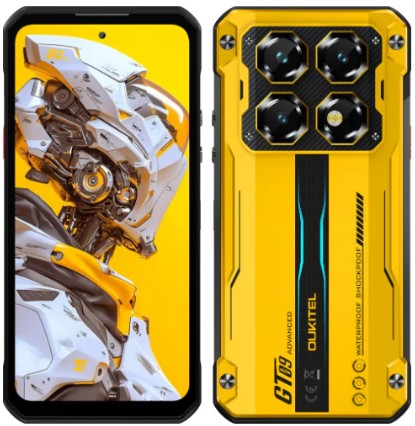
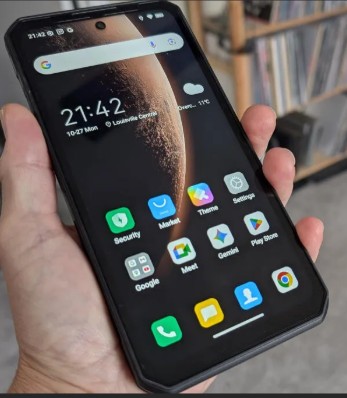
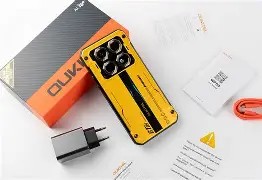
Oukitel WP60 - 7.2 inch 5G OUKITEL WP60 Rugged Mobile Android 15 Phone Waterproof 108MP Global (2025 Model)
<68b>
7 Colours
Oukitel WP60
Useful Apps - Google Play
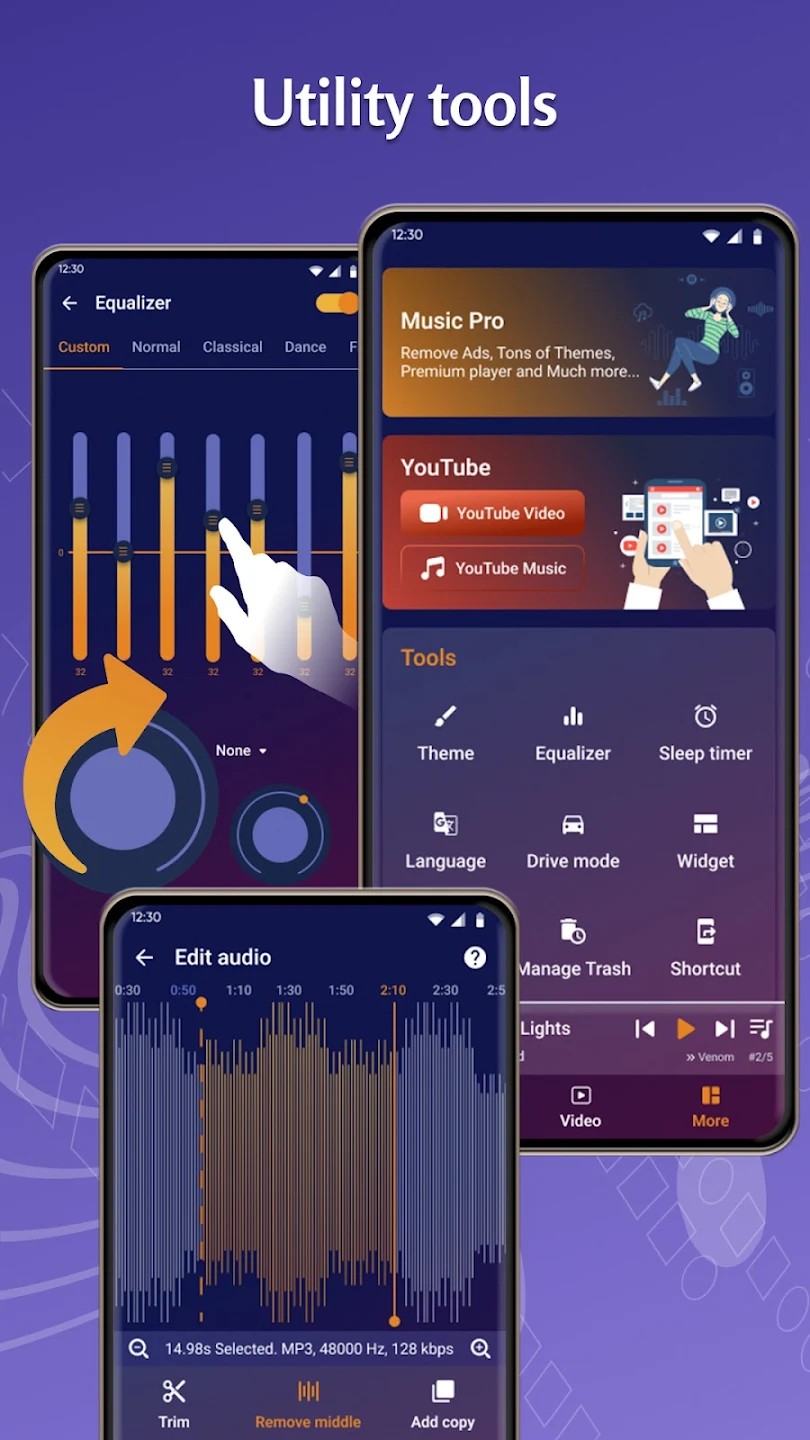
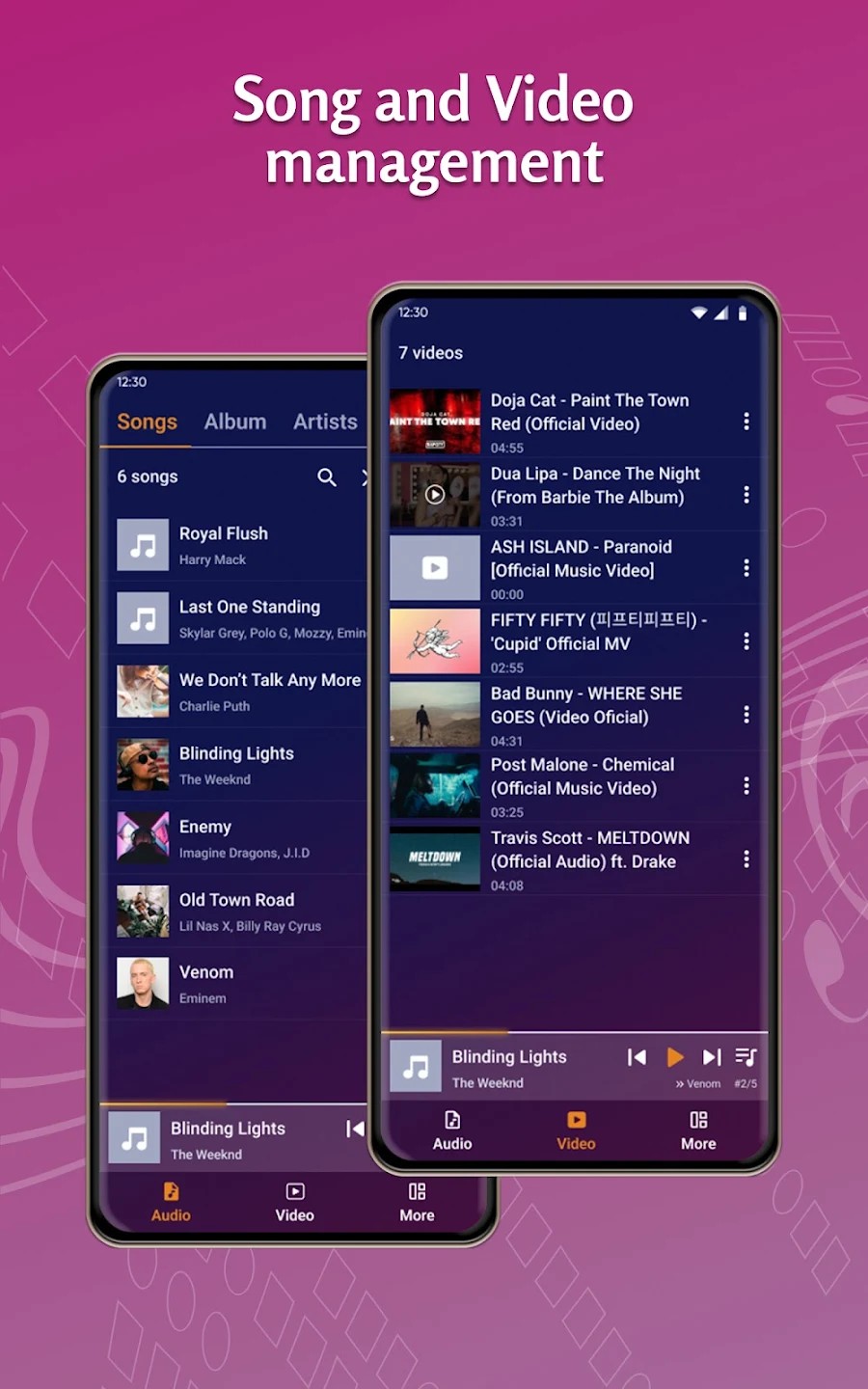
Music Player & Video Player (this includes YouTube movie and music files)
4.4 star 36.9k reviews Downloads10m+
Out of the many apps I looked at, this one came to my attention, it works on all devices and lists and provides the following:
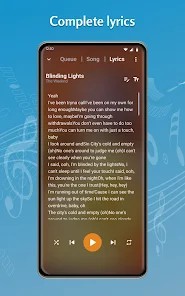
Favourite playlist Complete lyrics YouTube video and music Utility tools: Home Menu includes - Scan Music, Find duplicate songs, Allows: music to be paused when another app plays audio Hides short songs option, sound fading, device shake to change song, gapless playback, avoids abnormal stopped music.... Allows: Headset - Auto-play via Bluetooth, pause music on headphone detachment. Allows: Auto-mini player, sort or hide tabs, hide dividing lines, Allows: Auto change themes by time, Remembers last closed tab
Allows - you to display albums with sleeve/covers Allows - to tell you how many songs are on the album Allows - you to shuffle tracks Allows - you to sort by Title, Artist, No. of tracks ascending or desending Allows - to display all tracks on album Allows - for favourite playlist Allows - and provides complete lyrics Allows - you to play video, music, including YouTube files
Tools include: Equaliser (does the job) Edit Audio (does the job)
Music Pro
I have used this App - Music Pro version - I find it meets my needs, for what is out there and it is better than most, once you are familiar with it. Note: Pro-version is the paid version without ads - priced around £3.69 worth it! Note: Free versions normally come with ads or Malware no matter what free software you may use it seems.
Audio player supports most audio formats like MP3, AIFF, WAV, FLAC, OGG, AAC, M4A, ACC, etc. Video player supports video formats
Google Play Develop £3.69 (pro version - no third party or ads)
1. Bolt Twist 2. Makeup Stylist 3. Fruit Match 4. Cute Bear Bubble 5. Plinko Ball Club 6. Deep Astrology 7. Nut Sort Colour Puzzle 8 .Colour Block: Combo Blast 9. Snake War 10. Screw Brain 11. Burger Bar 12. Ball Sort Puzzle (Can be Installed)
Market - Varied Apps (Installed)
TipPac- (Wallpaper Updates) (Installed)
1.3*
Facebook (Lite) (Self-Installed)
YouTube (Installed)
Fourth Screen
Microsoft Authenticator (Self-Installed)
Google Authenticator (Self-Installed)
Theme (Installed)
NatWest Sample Bank App (Self-Installed)
PayPal Sample Bank App (Self-Installed)
File Manager (Self-Installed)
eBay - Shopping App (Self-Installed)
TEMU - Shopping App (Self-Installed)
GiffGaff - Service Provider (Sample- Self-Installed)
YouTube Player (Installed - deleted)
Browser (Installed - deleted)
Phone calls 4.0
Google messages 4.0
Contacts Google LLC 4.0
UK 3 Pin
Viewed on the bottom of All pages
Note: Google lens is incorporated on the Google Search Bar - Simple Camera and Mic - First Screen (Installed) Be careful when using as photos may go to cloud or other. Suggest using general Camera Button on ALL photos.
Software will vary based on personal and manufacturers choices
Above listing is an example
Music App
4.4
There are additional personal Apps on the listings, within the phone, however; these have not been listed here...
+
Now then! What problems did I face when trying to connect the phone to the PC? I can save you this headache by saying you don't need 'Phone link' or 'PC link' or anything like that, (unless you choose to), you just need the supplied 'C' connector charging lead to be plugged into your phone and PC 'C' port, (those without a 'C'Port on their PC have an added problem and will need to find an appropriate concoction of attachment plug-ends as to connect to your PC, so you may use the lead and standard USB ports. (believe me it is easier to use 'C' and/or USB' in the long run, it gives you control and more personal security). The problem that usually arises is getting the PC to communicate with the new phone. The phone settings will need to be configured to allow the phone to receive and transfer data via the USB/C lead. Now I ended up explaining to AI what I wanted to do and it talked me through it. (AI has some uses.... before deleting again). You will need Bluetooth or Wifi to connect for pairing to both the phone and/or PC and it will communicate or it will not, if the latter, then this is where talking to the AI will help you to solve your connection problems without having the embarrassment of realising you are not the 'sharpest tool in the toolbox, I must of sulked for at least 5 minutes before decided to snap out of it to move on...'
You still need your 'C' lead as this allows for better control for file transfer. The music can still be played via Bluetooth or wifi. later on when the phone settings have been configured. - On your PC you should have a 'Music File' and/or playlist folder with your music on it or a dedicated music backup drive on your PC as your initial storage of music files. I chose the BumbleBee App - loaded onto my PC (appropriate for the WP60) this was very much like the iTunes, layout , but works better for Android in my opinion. - On your phone there should be a 'music player app' (eg. as seen above). (BumbleBee is not used on the mobile itself, A.I suggested it is not meant to be used on your phone, and from what I could see, I couldn't load it onto my phone, even though I did try).
When you plug in your 'C' connector from phone to PC, go to File Manager in the left column click on 'This PC' you will get the WP60, appear (a small grey block with a green dot) with WP60 next to it and you will see all your drives listed within the same window. Double click on the 'block' and this will flip to another window, you should see 'a drive with green dot and reads 'Internal shared storage' with accompanied blue line to indicate drive capacity, also written underneath it, the space available. Double click on this drive image and this will change screen to show folders. (will not show if phone is not connected).
At this point you can transfer your music albums and files to the appropriate 'Music' folder, or pictures for 'Pictures' etc. Your music app on your phone may see the file or you may need to scan them using your chosen app, (example: music app as illustrated at the top of this page).
If you cannot see the album/files, check the following phone settings: On your phone look at settings -Look for: click:Connected Devices (Bluetooth pairing), look for and click: USB file transfer, this will go to 'Connected Devices - USB' Make sure the following is highlighted: 'This device' and 'File transfer' once completed, exit settings. I normally reboot both pc and phone at this point. You should now be able to sort out your music and photos via your music app.
Refer to your AI if any problems arise or persist and they will guide you accordingly. The AI will need to know your phone model and manufacturer. Your Music App should now list your albums/artists and/or tracks etc - make sure you have copied your album covers within your album folders within your main music folder on your PC before transferring, delete duplicates on your phone if any and you are now ready to play some music, videos, streaming or view photos etc...
Other Typical Apps
'Bumble Bee'
Grouped
Grouped
Steam Self-installed)
Note: Some WP60's may not boot up with the BumbleBee splash screen as seen on their promotional media however; this is normal based on third party retailers, manufacturer batches etc . One can customise or personalise the phone with favourite images via the internet. Bumper edges on the sides of the phone may or may not be present, with yellow inset instead there may just be a continual metal gun-metal plate.